
The Quest Studio
Beginner Last updated Jul 10, 2026
On this page
One dockable window (Tools → Quest Studio) drives the whole pipeline. This page tours each zone; the linked guides go deeper on the workflows behind them.
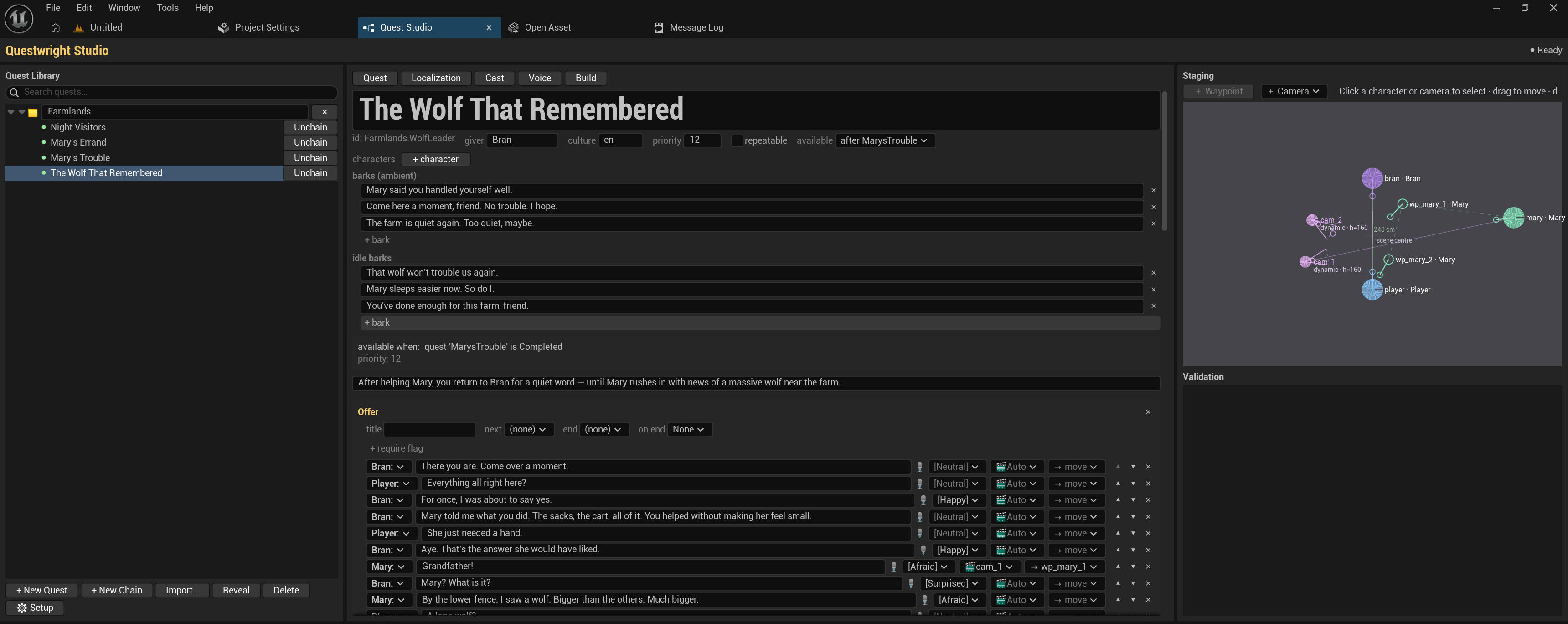
Library
The left column lists every *.quest.yaml found in your project (Content/Quests/ by
default; files appear automatically, no import step). Each quest shows a status badge:
| Badge | Meaning |
|---|---|
| Generated & valid | Assets are up to date with the file |
| Changed | The file changed since the last build; just RUN again |
| Validation errors | The file has errors; open the quest to see findings with jump-to-source |
| Not built | Never compiled yet |
+ New Quest creates a file from a template. New Chain groups quests into a story
chain: drag quests into the chain folder to order them. Chains are pure data: dragging writes
available_when / priority into the YAML itself; there is no hidden manifest to corrupt.
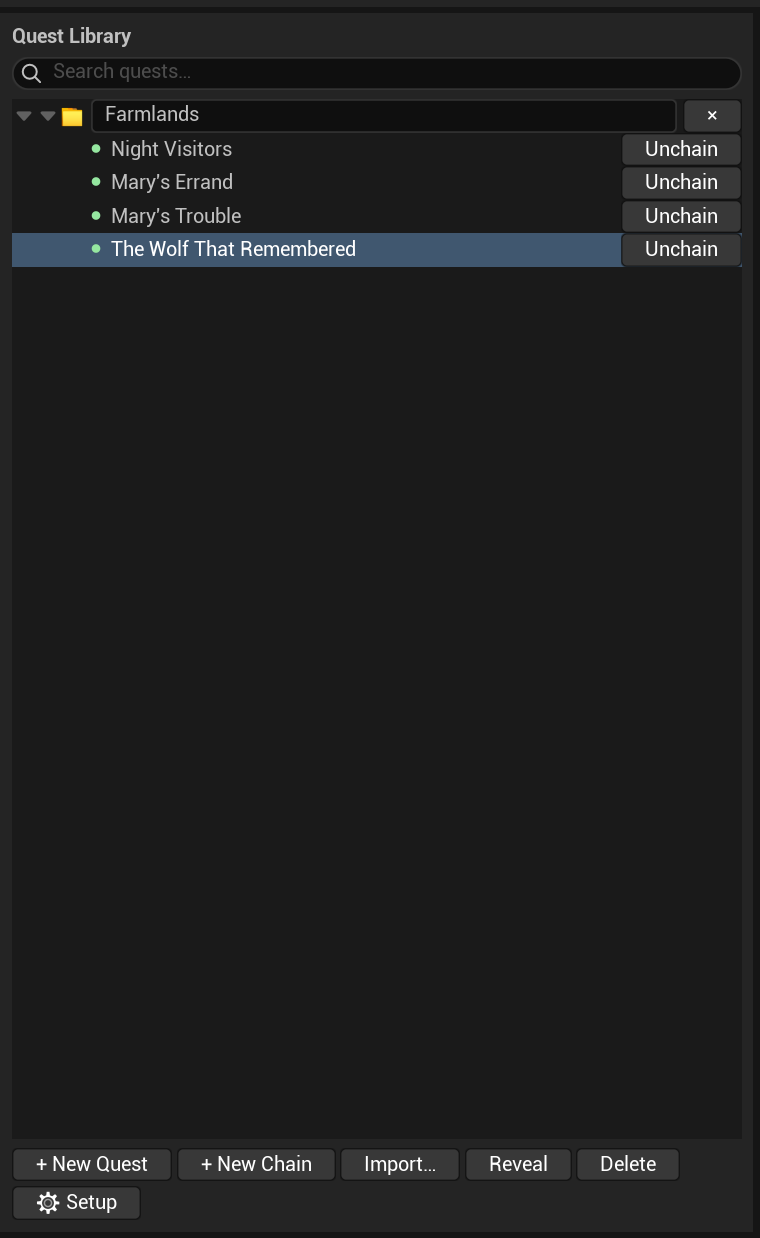
Quest tab: the constructor
The full quest is editable in place: scenes, lines, choices, emotions, shots, step wiring, effects, conditions, rewards and barks, with the chain/prerequisite info shown on the quest card. Everything the constructor writes is plain YAML, so hand-editing the file in a text editor is always equivalent, and the two stay in sync.
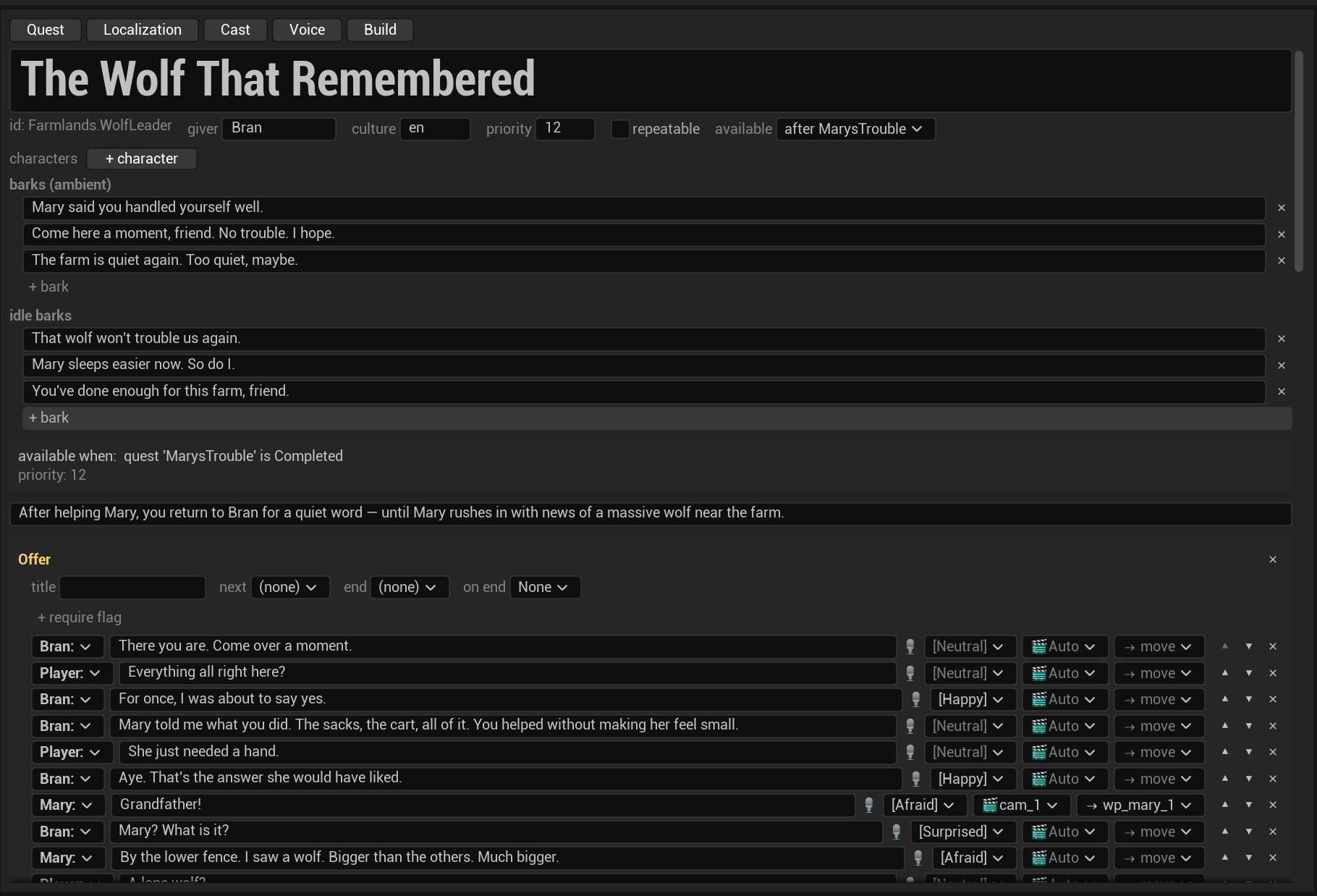
Staging canvas
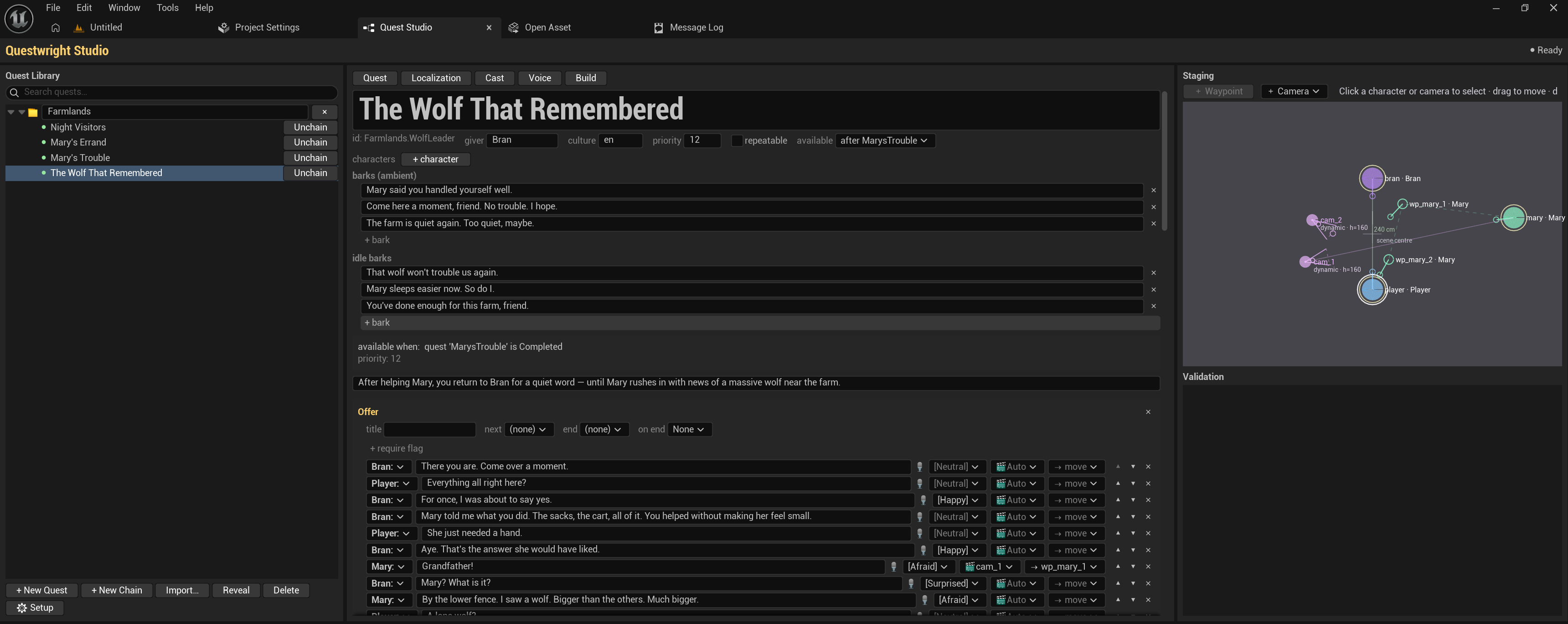
The right zone hosts a top-down canvas for placing the participants of a scene: drag marks to position characters, rotate them, add spawned extras (appears already placed vs walks in), add waypoints for mid-dialogue movement, and place custom cameras with a live frustum preview. Put the cursor in a dialogue line and the canvas highlights who stands where at that moment. Details in Staging & cameras.
Cast tab
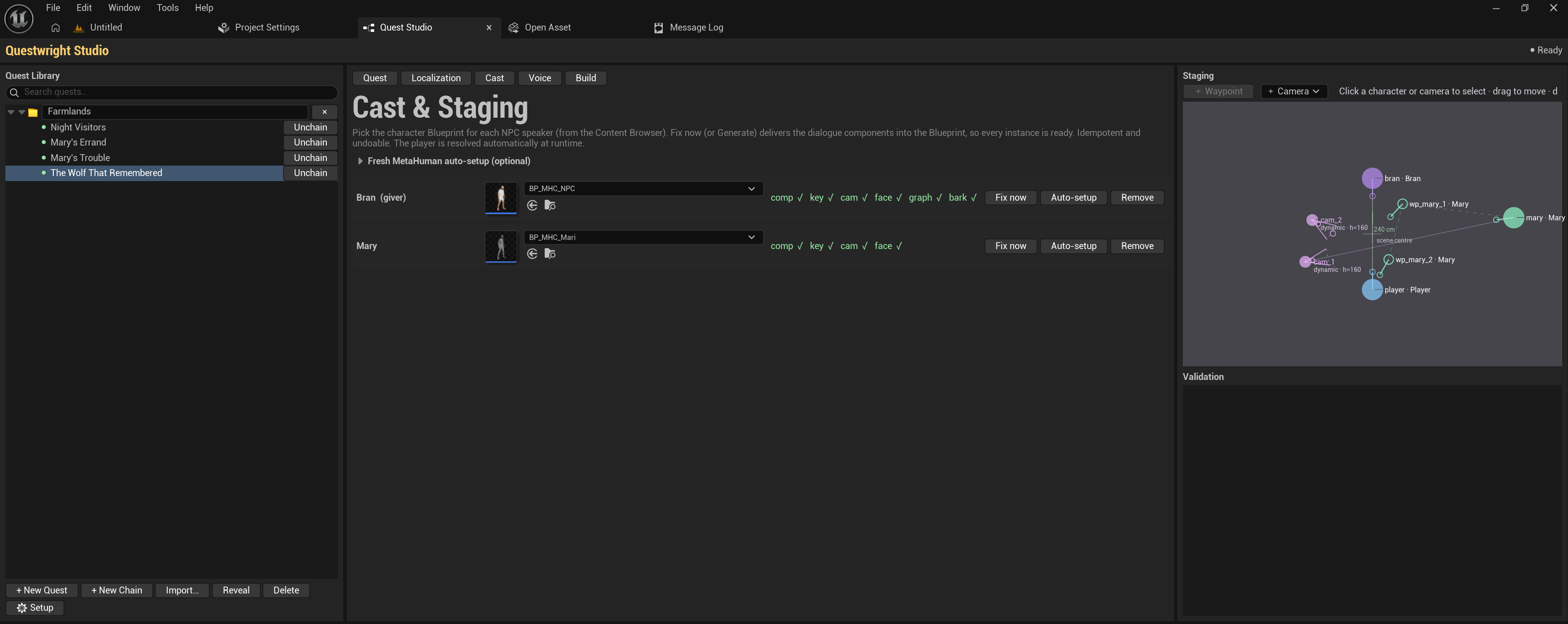
Maps each speaker key to a character Blueprint and marks the Player. The bind stage adds the Questwright components to your Blueprints idempotently; Remove Questwright components reverts a character to its clean state. The Fresh MetaHuman auto-setup section turns a Blueprint fresh out of MetaHuman assembly into a dialogue-ready character in one click (see Getting started).
Voice tab
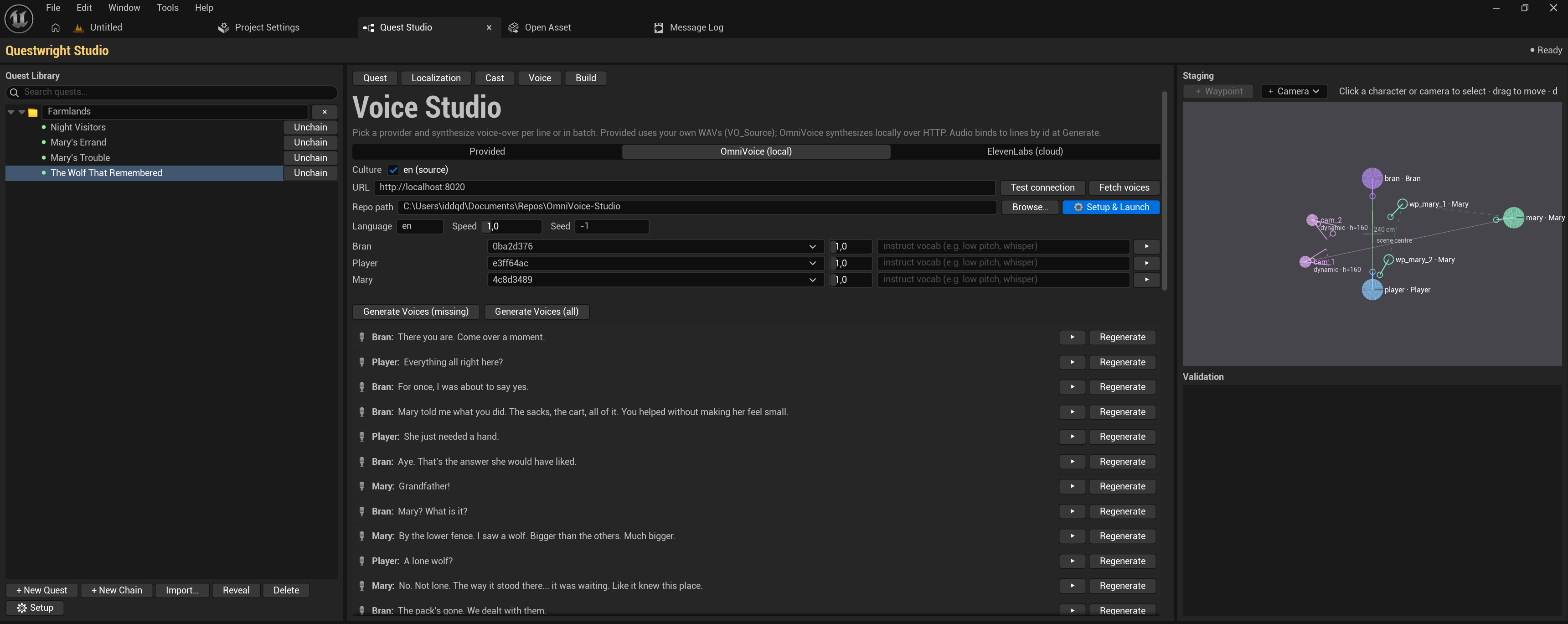
Pick a TTS provider per project, assign a voice per speaker and per language, audition single lines or batch-synthesize, or drop in your own WAV files. Details in Voice-over.
Localization tab
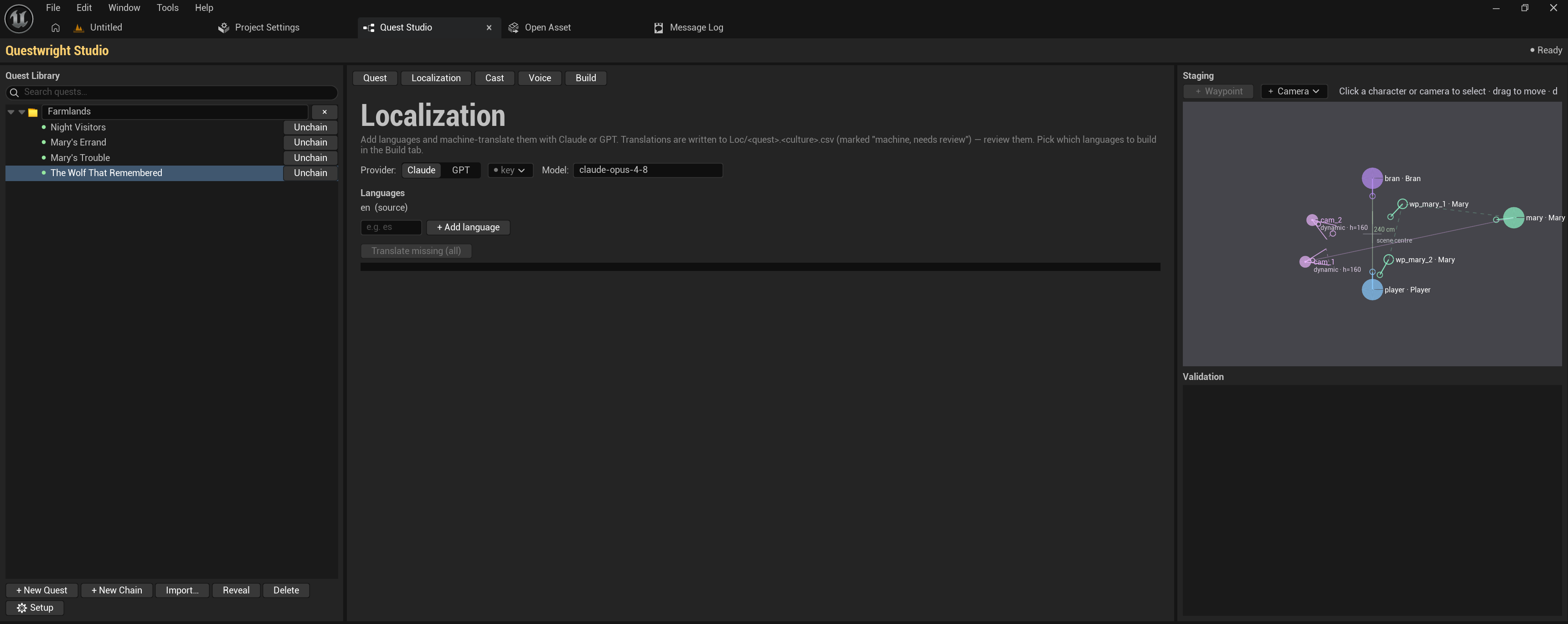
Add languages, see translation coverage per quest, and machine-translate missing lines with your own Claude or OpenAI key (results are marked “machine, needs review”). Details in Localization.
Build tab
The pre-flight checklist (every error has a Fix → shortcut to the right tab), language checkboxes, the RUN button, a live stage tracker, Play (PIE) and Show Assets.
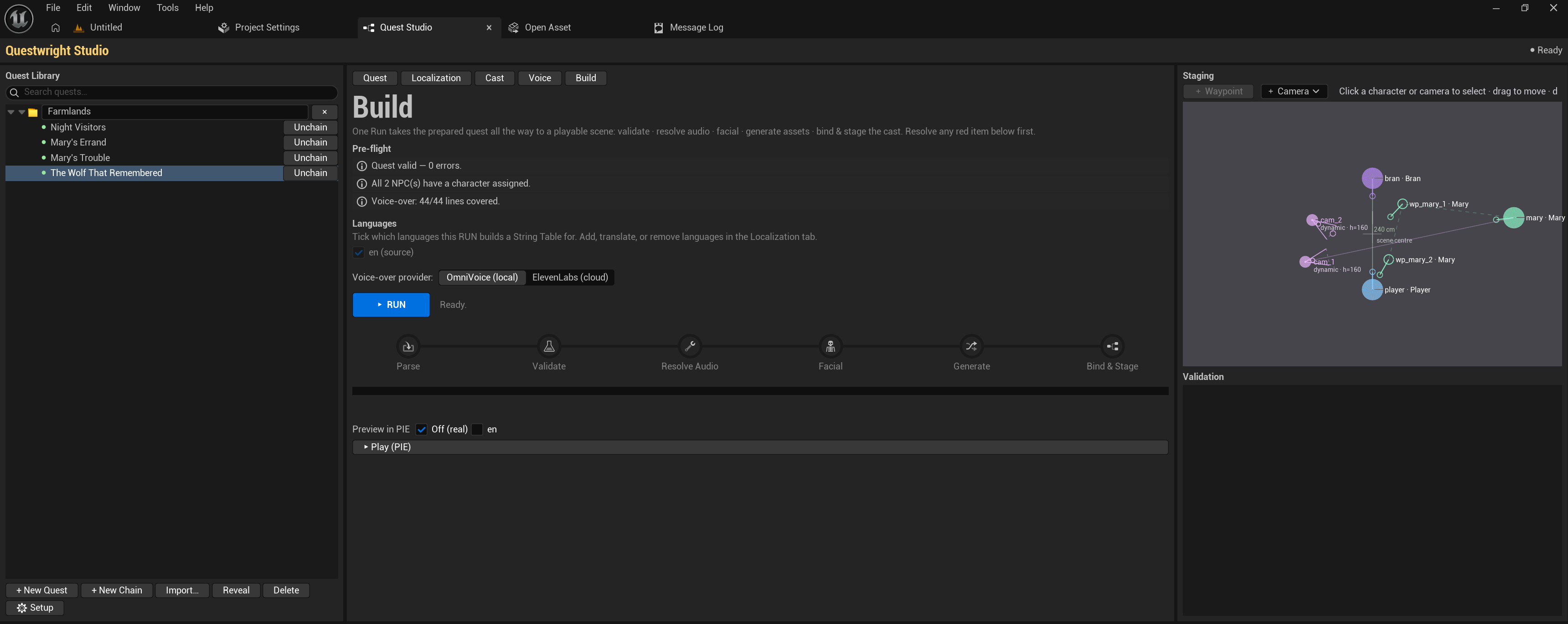
Builds are idempotent: already-voiced lines are skipped, changed lines are re-synthesized and re-baked, and assets belonging to deleted lines or steps are pruned automatically.